

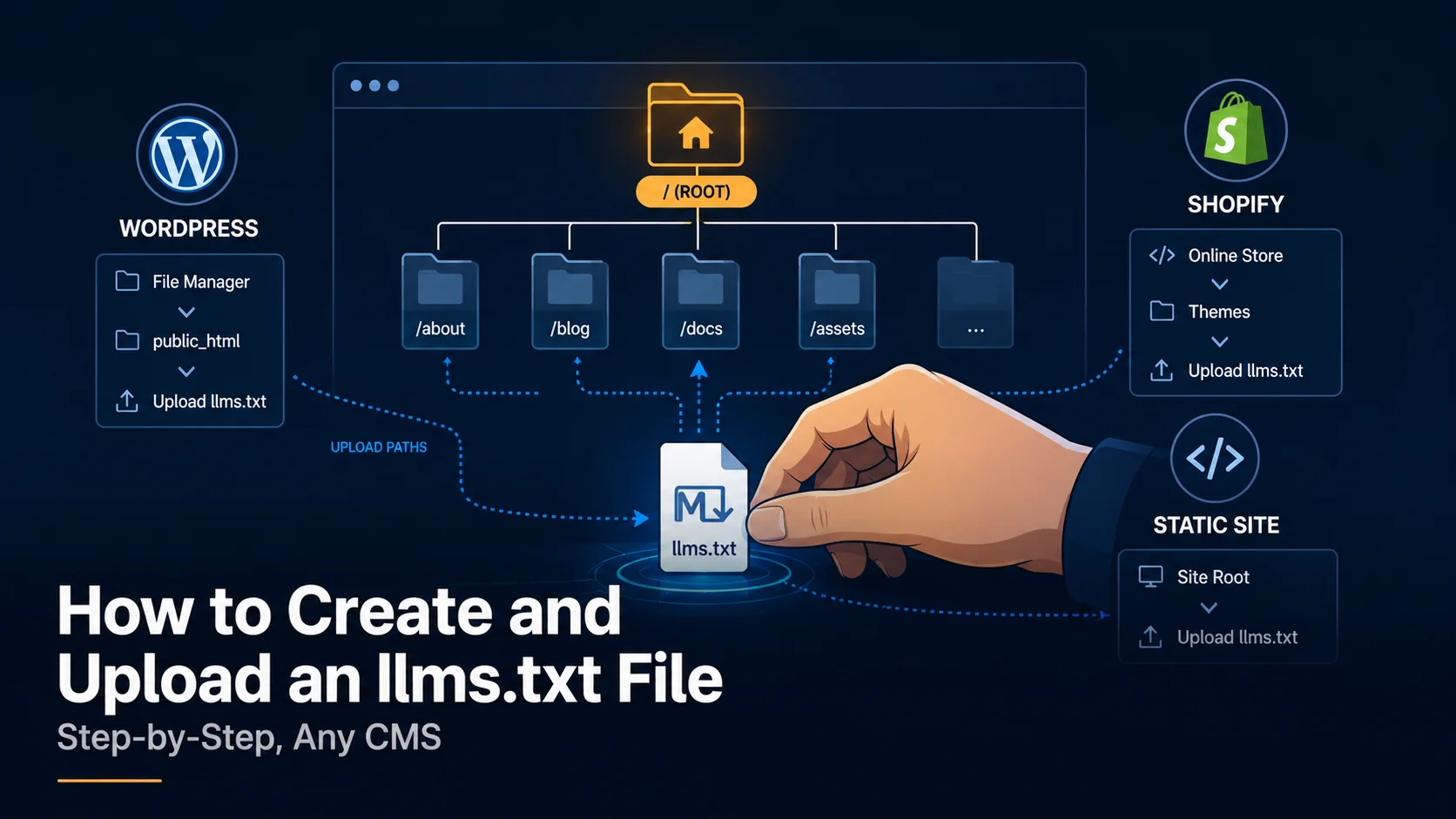
WordPress powers roughly 43 percent of all websites according to W3Techs’ 2026 usage survey, and none of its default themes generate an llms.txt file automatically. Shopify, Webflow, and static site generators such as Astro and Hugo share the same gap: the format only reached general awareness after Answer.ai published the proposal in September 2024, well after most CMS platforms had finalised their file-handling conventions.
Publishing a compliant file takes three steps regardless of platform: draft the markdown content, place it at the domain root, and confirm it resolves at yourdomain.com/llms.txt without a redirect. This guide walks through each step for WordPress, Shopify, Webflow, and static sites, and shows how a free generator tool removes the formatting work entirely.
Budget roughly an hour end-to-end for a typical business site with under thirty key pages. Larger documentation sites with hundreds of pages take longer only because the page-selection decision in step one takes longer, not because the technical upload itself is more complex.
Step 1: Decide Which Pages Belong in the File
Not every page deserves a place in an llms.txt file. The format works best as a curated shortlist, not a mirror of the full sitemap. Start with documentation, pricing, core product or service pages, and any content a person would need to understand what the business does within the first thirty seconds of arriving.
Group candidate pages into two or three categories before writing any markdown. A software company typically separates Documentation, API Reference, and Pricing. A content publisher might use Guides, Tools, and About. This grouping becomes the H2 structure of the finished file, so deciding it upfront saves a rewrite later.
Step 2: Write the Markdown File
The file opens with a single H1 line naming the site or product, followed by a one-sentence blockquote summary. Below that, each category becomes its own H2 heading, with page links listed underneath as single-line markdown entries: the link text, the URL in parentheses, and a short description after a colon.
Writing this by hand is manageable for ten pages and tedious past thirty. WritoryBuzz’s free llms.txt generator accepts a list of page titles, URLs, and categories, then outputs correctly formatted markdown in under two minutes, which removes the most common formatting mistakes: missing blank lines between sections and inconsistent link syntax.
Step 3: Upload to WordPress
WordPress serves files from its root directory through the server’s file system rather than the post editor, so llms.txt needs to be placed via FTP, a hosting file manager, or an SFTP client, directly inside the top-level public_html or www folder alongside wp-config.php. Uploading it as a Page or Post will not work, since WordPress would serve that content at a URL with the site’s permalink structure attached rather than at the bare root address.
A small number of WordPress plugins launched in 2025 that generate and serve the file through a settings screen instead of a manual upload, which suits site owners without FTP access. Either method is valid as long as the final file resolves at the exact root URL with no redirect chain in front of it.
Step 4: Upload to Shopify and Webflow
Shopify does not currently expose root-level file uploads through its standard admin interface, which means llms.txt on a Shopify store typically requires either a theme code edit that serves the file through a custom app proxy, or a Shopify app built specifically for the purpose. Webflow allows custom code and file hosting through its site settings, where a custom file can be attached to the root path directly from the Webflow dashboard without a code edit.
Both platforms share a verification step that WordPress users often skip: after publishing, request the file directly in a browser using the bare root URL. If the platform’s routing rules intercept the request and return the homepage instead of the raw markdown, the file is not correctly deployed even if the upload step reported success.
Step 5: Upload to Static Site Generators
Static sites built with Astro, Hugo, Next.js, or plain HTML handle llms.txt the same way they handle robots.txt or favicon.ico: as a static asset placed in the public or static directory, which the build process copies to the site root automatically. This is the simplest deployment path of the four covered here, since no server-side routing decision can intercept the file.
Step 6: Verify and Maintain the File
After upload, confirm three things: the file returns a 200 status code at the root URL, the content type serves as plain text or markdown rather than HTML, and every linked URL inside the file is live and correctly spelled. A robots.txt generator with a built-in URL tester covers the same verification pattern and is worth running alongside llms.txt, since the two files commonly get checked in the same technical SEO pass.
Treat the file as a living document rather than a one-time task. Whenever a major page is added, renamed, or retired, the llms.txt entry needs the same update, or it starts pointing AI crawlers toward broken or outdated content, which undermines the exact trust signal the file is meant to build.
Troubleshooting Common Upload Errors
The most frequent failure is a file that uploads successfully but resolves to the homepage instead of the raw markdown when requested directly. This happens when a CMS’s routing layer intercepts unrecognised root-level requests and redirects them to a 404 page or the homepage rather than serving the static file, which is common on Shopify and some managed WordPress hosts with aggressive caching rules.
A second common error is serving the file with the wrong content type. Browsers and crawlers expect llms.txt to return as text/plain or text/markdown. Some server configurations default unrecognised file extensions to application/octet-stream, which can cause a crawler to download the file rather than read it inline. Checking the response headers directly, rather than just confirming the file opens in a browser tab, catches this error reliably.
A third error worth checking is caching. Content delivery networks and full-page cache plugins sometimes serve a stale 404 response for the file’s URL from before it was uploaded, even after the file exists on the server. Purging cache for the specific root URL after upload resolves this in most cases.
What to Do After the File Is Live
Publishing llms.txt is one input into a wider AI visibility picture, not the whole picture. WritoryBuzz’s AEO checker scores schema markup, FAQ formatting, and crawler access alongside the presence of a valid llms.txt file, giving a fuller view of whether a page is actually citation-ready.
For a breakdown of real, annotated files from live sites, see llms.txt Examples: 8 Real Files Broken Down Line by Line, which shows the category and formatting choices covered in this guide applied in practice.
Get It Live This Week, Not This Quarter
The technical work here rarely exceeds an hour once the page list is decided. The harder part is the upfront decision about which pages actually belong in the file, and that decision benefits from involving whoever owns product marketing or documentation rather than being made by whoever has FTP access.
Start with the background on the format covered in What Is llms.txt? The New Standard for AI Crawler Visibility if the concept itself still needs justifying internally, then move straight to drafting the file with the generator once the page list is agreed.
Once live, revisit the file quarterly. Explore the rest of WritoryBuzz’s free AI search and SEO toolkit for the other checks worth running on the same schedule.