

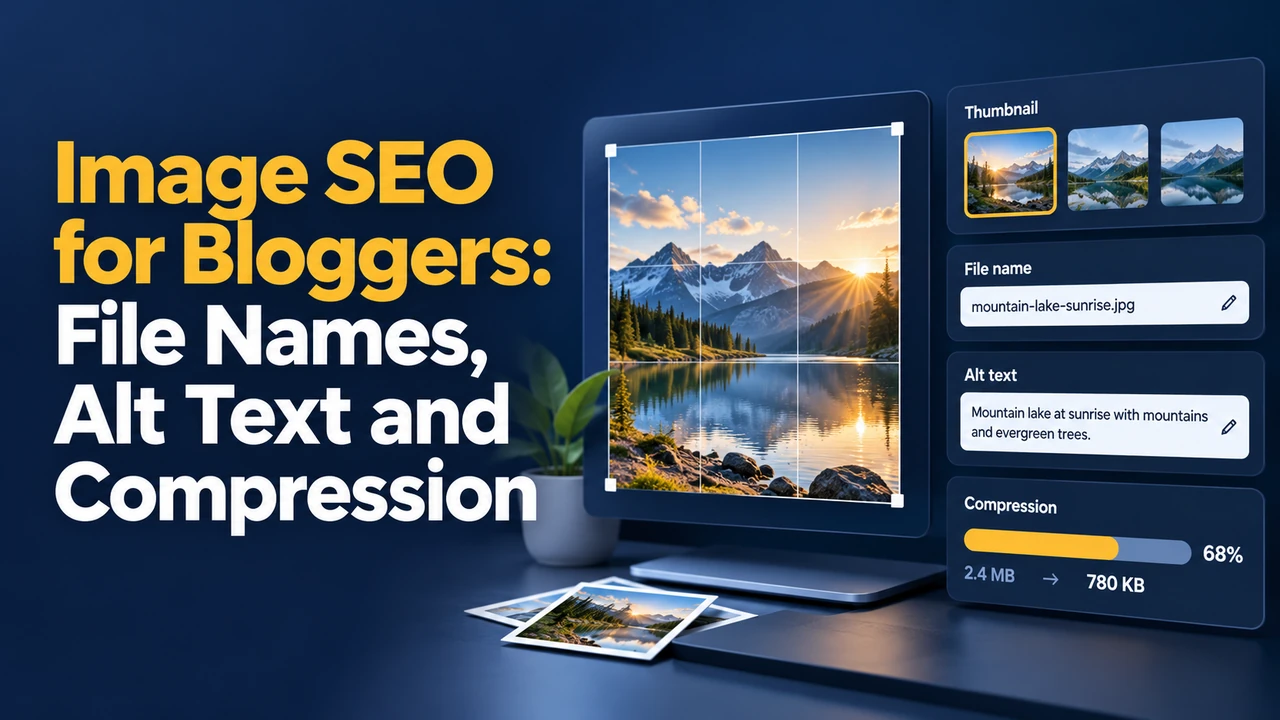
Google calls alt text the most important piece of image metadata, and its own example is refreshingly plain: “Dalmatian puppy playing fetch” works, while a string of stuffed keywords does not.
Images do double duty on a blog. They make a post easier to read and share, and they can bring visitors from Google Images and Discover. They are also often the heaviest part of a page, so careless handling slows everything down. This guide covers the habits that matter: file names, alt text, the right formats, compression, placement and the technical details that decide whether Google can actually find your pictures.
File Names: Say What the Image Shows
Google recommends descriptive file names because they give a small hint about the subject. A name like my-new-black-kitten.jpg is more useful than IMG00023.JPG. Use lowercase words separated by hyphens, keep it short, and avoid dates, camera codes or long keyword strings.
| Weak file name | Better file name |
|---|---|
| IMG_4021.JPG | diwali-rangoli-peacock-design.jpg |
| image-final-new2.png | core-web-vitals-lcp-chart.png |
| best-cheap-seo-tips-blog-seo-tips-2026.jpg | blog-seo-checklist-on-laptop.jpg |
Rename files before you upload them. Changing a file name later creates a new URL and can break existing embeds unless you update and redirect properly.
Alt Text: Describe, Do Not Stuff
Alt text serves people who use screen readers, shows when an image fails to load, and helps search engines understand the picture. Write it as a short, accurate description of what the image shows, in the context of the page.
- Be specific: “Woman draping a red silk saree with pleats in hand” beats “saree”.
- Keep it concise: one clear sentence is usually enough.
- Add the keyword only if it fits naturally: never repeat it across every image.
- Skip “image of” and “picture of”: screen readers already announce an image.
- Leave decorative images empty: use alt=”” for purely decorative graphics so assistive tools can skip them.
Where an image contains important text, such as a chart or screenshot, add the key information in the surrounding text too, so no one depends on the picture alone.
Formats, Compression and Speed
Google Images supports BMP, GIF, JPEG, PNG, WebP, SVG and AVIF. In practice: use JPEG or WebP for photos, PNG for graphics that need transparency, SVG for logos and simple icons, and AVIF where your platform supports it. Because images are often the largest part of a page, compression directly affects loading speed and Core Web Vitals.
| Step | What to do | Why it matters |
|---|---|---|
| Resize | Export at the largest size the layout actually shows | Avoids sending pixels nobody sees |
| Compress | Use a quality setting that looks clean at normal viewing | Cuts file weight, improves LCP |
| Convert | Use WebP or AVIF where supported | Smaller files at similar quality |
| Lazy-load | Load below-the-fold images on demand | Saves bandwidth; never lazy-load the hero |
| Set dimensions | Add width and height attributes | Prevents layout shift (CLS) |
Responsive Images
Use srcset or the picture element so phones receive smaller files. Always include a regular src as a fallback so Google and older browsers can still find a usable image URL.
Help Google Find and Understand Your Images
- Use the img element with src: Google does not index CSS background images as content images.
- Place images near relevant text: the surrounding words, headings and captions provide context.
- Write helpful captions where they add information, since people read captions closely.
- Use an image sitemap if images load in ways that are hard to crawl, or if you want to list extra ones.
- Keep image URLs stable and crawlable: do not block them in robots.txt.
- Respect rights: use images you own or have permission to use, and credit where required.
For Discover and social sharing, also make sure your featured image is large and clear. We cover the exact Discover guidance in a separate post.
A Quick Image SEO Checklist
Before publishing, scan each image for five things: Is the file name descriptive? Is the alt text accurate? Is it sized and compressed? Does it have dimensions set? Is it close to the text it supports? An audit of your 20 most-visited posts with this checklist usually finds easy wins, especially oversized hero images and missing alt text.