
The VS Code marketplace holds more than 50,000 extensions, and most of them are either abandoned, duplicate a feature already built into the editor, or quietly slow your setup to a crawl. That scale is the real problem in 2026: the challenge is not finding extensions, it is filtering out the outdated and redundant ones. GitLens, the most downloaded Git extension, has passed 40 million installs, and its free tier is generous enough that most developers never need the paid upgrade. The difference between a fast, focused editor and a sluggish, cluttered one usually comes down to a dozen well-chosen extensions rather than fifty.
The landscape shifted in a specific way over the past two years. AI moved to the centre of the coding workflow, with most developers now using an AI-assisted editor like Cursor or GitHub Copilot as a broader agent layer rather than simple inline autocomplete. That changes which supporting extensions actually matter: the ones on this list are chosen to work alongside an AI-powered setup, handling the formatting, static analysis, Git visibility, and testing that AI does not replace. Before installing any of them, run a quick trust check: verify the publisher, confirm the extension is actively maintained, and skim the changelog for telemetry or broad permission requests. If you also want the full picture of AI-native development, our roundup of the best AI coding tools of 2026 is the companion read.
How to Choose Extensions Without Bloating Your Editor
The single most useful habit when building a VS Code setup is restraint. An average developer’s editor slows down not because VS Code is heavy but because it is carrying ten extensions that each add a little startup cost and a little background processing. The rule that keeps a setup fast is simple: an extension has to solve a current workflow problem you actually have, not carry install momentum from a list like this one. If you would not notice its absence on a fresh machine, it does not belong in your daily setup.
There is also a security dimension that matters more in 2026 than it used to. Extensions run with significant access to your code and environment, so a compromised or malicious extension is a real risk. Prefer verified publishers with active open-source repositories, check recent update activity, and be wary of anything requesting broad permissions for a narrow job. Some capabilities you might reach for, certain linting or language support, are already built into VS Code or bundled in official extension packs, so confirm you are not installing a redundant copy of something you already have.
1. Prettier: End Every Formatting Debate
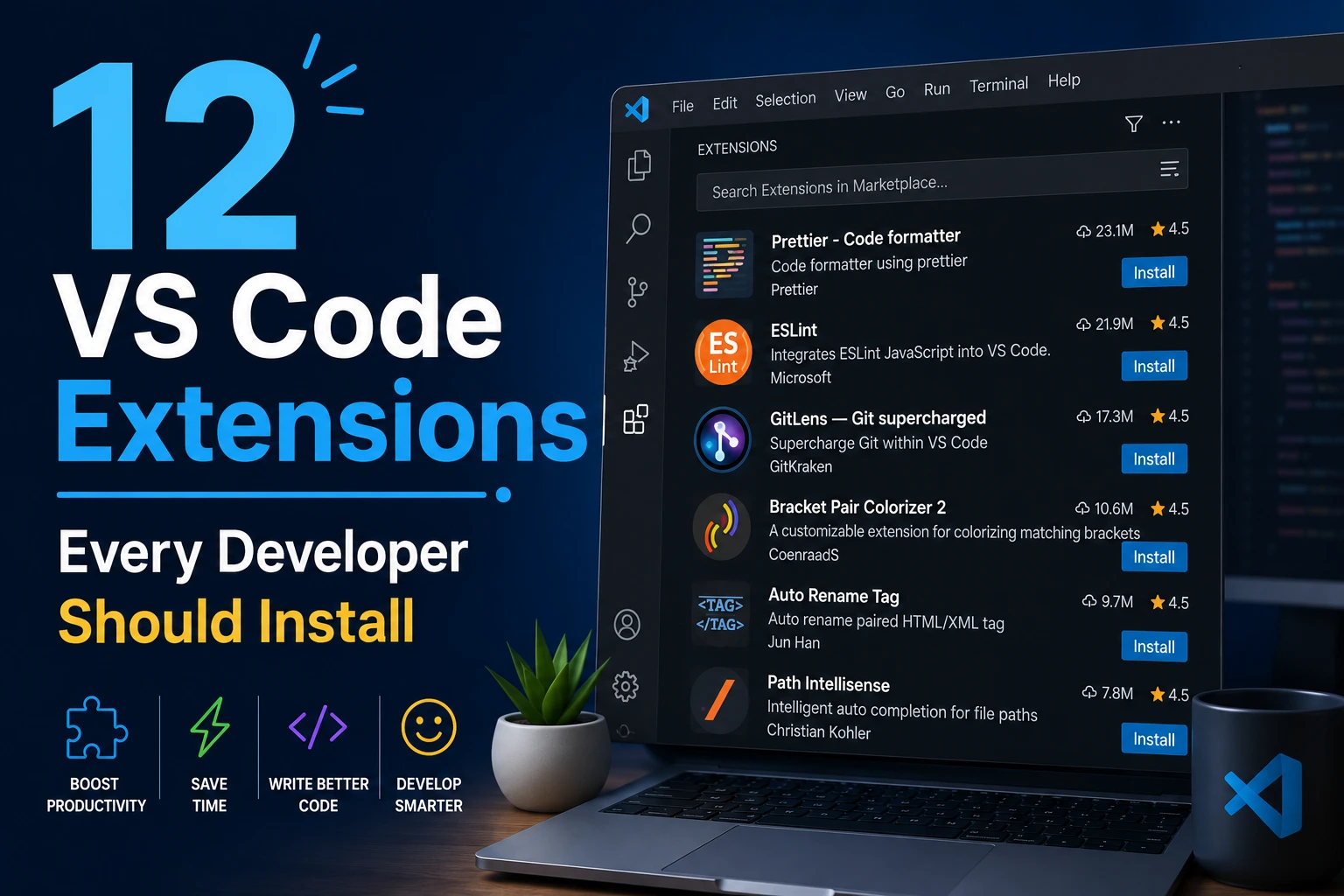
Prettier is an opinionated code formatter that automatically standardises your code style on save, ending the endless team debates about spacing, quotes, and line breaks that clutter code reviews. It supports JavaScript, TypeScript, CSS, HTML, and many other languages, and the moment a team adopts it, style stops being something anyone argues about, because the tool enforces one consistent style automatically across every file.
The configuration tip most installs miss is to enable format-on-save for the specific project and pair Prettier with ESLint so formatting and linting do not conflict. Prettier handles how the code looks, ESLint handles whether it is correct, and together they cover the baseline every project needs. This is one of the first extensions to install on any new setup, because nearly everything else in your workflow works better once your code is consistently formatted.
2. ESLint: Catch Errors Before They Ship
ESLint performs static analysis on JavaScript and TypeScript, flagging bugs, anti-patterns, and rule violations as you type rather than at runtime or in review. It reads your project’s own rule configuration, so it enforces the standards your team actually agreed on rather than a generic default. In 2026, ESLint remains part of the classic baseline precisely because AI assistants do not replace static analysis: an AI can write plausible code that still violates your project’s rules, and ESLint is what catches it.
The value of ESLint is measured in bugs that never make it into a pull request. A typo in a variable name, an unhandled promise, an unused import, all surface inline the moment you write them, when they cost seconds to fix, rather than in a review or a production incident where they cost far more. Configure it to your project’s ruleset and let it run continuously. It is the safety net beneath everything else you write.
3. GitLens: See the Story Behind Every Line
GitLens supercharges the Git capabilities built into VS Code, adding inline blame annotations that show who last changed each line and when, interactive commit graphs, file history exploration, and powerful comparison tools. With more than 40 million installs, it is the most downloaded Git extension for good reason: it turns a repository’s history from something you have to leave the editor to investigate into something visible right beside the code you are reading.
The practical payoff is context. When you encounter a puzzling line of code, GitLens tells you instantly who wrote it, in which commit, and ideally why, without switching to a terminal or a browser. The free tier is genuinely generous and covers what most developers need, with the paid GitLens+ features adding visual commit graphs and worktree support that only heavier Git users tend to require. For anyone working in a team codebase, this extension pays for its footprint many times over.
4. Error Lens: Make Problems Impossible to Miss
Error Lens takes the errors and warnings VS Code already detects and displays them inline, directly on the offending line, in colour, rather than tucking them away in a panel or requiring a hover to read. This small change to how problems are surfaced has an outsized effect on speed: you see the exact error message next to the exact line as you type, which collapses the loop between making a mistake and understanding it.
The reason this extension appears on nearly every serious 2026 list is that it removes a constant micro-friction. Without it, spotting an error means noticing a small underline, hovering to read the message, then acting. With it, the message is simply there, in your peripheral vision, the moment the problem exists. For developers who value flow, Error Lens is one of the highest-impact, lowest-cost extensions available, and its absence is immediately noticeable on a fresh setup.
5. Thunder Client: Test APIs Without Leaving the Editor
Thunder Client is a lightweight API testing tool that lives inside VS Code, letting you build, send, and inspect HTTP requests without switching to a separate application like Postman. For developers building or consuming APIs, this eliminates a constant context switch: you can test an endpoint, read the response, and jump straight back to the code that calls it, all in the same window. It supports request collections, environment variables, and scripting for common workflows.
The advantage is not that Thunder Client is more powerful than a dedicated API platform, it is that it is right there, integrated into the environment where you are already working. For quick endpoint checks during development, that proximity matters more than an extensive feature set. Heavier API work with large teams may still justify a standalone tool, but for the daily rhythm of building and testing endpoints inside a project, Thunder Client removes friction that adds up over a working day.
6. GitHub Copilot: The AI Layer That Now Does More
GitHub Copilot remains the most influential extension in the VS Code marketplace because it has evolved from inline code completion into a broader agent layer that can reason about your codebase, suggest multi-file changes, and answer questions in context. Even for developers whose primary editor is an AI-native tool, Copilot inside VS Code provides completion, test scaffolding, and refactoring assistance that competes with, and often complements, traditional productivity extensions.
The honest framing for 2026 is that AI-assisted coding is no longer optional for most professional developers, and Copilot is the most widely adopted way to add it to a VS Code setup. It does not replace the formatting, linting, and Git tools above, it works alongside them, handling the generative and exploratory parts of coding while those tools handle correctness and consistency. Used well, as an assistant you direct rather than a system you trust blindly, it is a genuine multiplier on output.
7. Tailwind CSS IntelliSense: Essential for Modern Frontend
If you use Tailwind CSS, and in 2026 most frontend developers do, Tailwind CSS IntelliSense is close to mandatory. It provides autocomplete for every utility class, hover previews showing the actual CSS a class generates, and linting that catches common mistakes like conflicting or misspelled classes. Crucially, it reads your project’s Tailwind configuration automatically, so custom colours, spacing, and breakpoints appear in autocomplete instantly rather than forcing you to memorise them.
The productivity gain is substantial for anyone writing utility-first CSS, because it removes the constant need to check documentation or guess at class names. Paired with a companion extension like Tailwind Fold, which collapses long class strings so your markup stays readable, it makes Tailwind development noticeably smoother. For a frontend developer in a Tailwind codebase, this extension moves from a nice-to-have to a core part of the daily setup.
8. GitHub Pull Requests and Issues: Review Without Tab-Switching
The official GitHub Pull Requests and Issues extension lets you review pull requests, leave comments, check continuous integration status, and manage issues without ever leaving VS Code. For teams that live in GitHub, this eliminates a persistent source of context-switching: instead of bouncing between your editor and a browser during code review, you review the changes in the same environment where you understand the code best.
The benefit compounds on teams where review is a daily activity. Reading a diff inside the editor, with full access to the surrounding code, syntax highlighting, and your own navigation tools, produces better reviews than reading the same diff in a browser tab stripped of that context. For any developer whose work involves frequent pull requests, this extension turns review from an interruption into a natural part of the coding flow.
9. Path Intellisense: Autocomplete Your File Paths
Path Intellisense autocompletes filenames and folder paths as you type them, intelligently suggesting the correct file and folder names from your project structure. This solves a small but frequent annoyance: importing a module or referencing an asset and getting the relative path slightly wrong, then discovering the mistake only when something fails to load. With Path Intellisense, the editor suggests valid paths as you type, so the path is correct by construction.
It is a modest extension that earns its place through sheer frequency of use. In a large project with a deep folder structure, typing import paths by hand is both slow and error-prone, and a broken path can be surprisingly annoying to debug. Autocompleting them removes an entire small category of mistakes and speeds up one of the most common actions in any codebase. Like Error Lens, its value is invisible until it is missing.
10. Auto Rename Tag: Keep HTML and JSX in Sync
Auto Rename Tag automatically renames the paired closing tag when you edit an opening HTML or JSX tag, and vice versa. Anyone who has changed a `div` to a `section` and forgotten to update the matching closing tag knows the specific frustration this prevents: broken markup, confusing errors, and a hunt for the mismatched tag. This extension keeps the pair in sync automatically, so editing tag names never breaks your structure.
It is a small quality-of-life improvement rather than a transformative tool, but it targets a mistake that frontend developers make constantly, especially when refactoring markup. For anyone working in HTML, JSX, or similar templating languages, it removes a recurring source of small bugs at essentially zero cost to editor performance. This is the kind of extension you install once and forget about, quietly saving you from a class of errors you no longer have to think about.
11. Docker: Manage Containers Without Context Switching
The Docker extension, though often overlooked even by experienced developers, provides tooling to explore images, build and manage containers, and read container logs directly inside VS Code. For developers building containerised applications, especially microservices that primarily run in containers, this prevents the constant context switch between the editor and a terminal for routine container operations. You can inspect a running container, tail its logs, and manage images without leaving your workflow.
The related Dev Containers extension takes this further, letting you define your entire development environment as a container configuration so VS Code opens your project inside a container with all dependencies preconfigured. This solves the classic “works on my machine” problem: every developer on the team gets an identical environment. For anyone whose applications run in containers, these extensions turn container management from a separate task into an integrated part of development.
12. Code Spell Checker: Catch Typos in Code and Comments
Code Spell Checker flags spelling mistakes in your code, including variable names, comments, and strings, using a dictionary aware of common programming terms and camelCase conventions. This catches a surprisingly consequential class of bug: a misspelled variable or property name that the compiler accepts but that silently breaks logic, or an inconsistently spelled identifier that makes code harder to search and maintain. Typos in comments and documentation are caught too, keeping your codebase professional.
The reason this earns a place on a focused list is that spelling errors in code are both common and disproportionately annoying to debug, because you tend not to suspect a typo in a name you are certain you spelled correctly. A quiet inline flag as you type prevents the mistake at the source. For teams, it also enforces consistency across a shared codebase, which makes searching, refactoring, and reading each other’s code measurably easier over time.
The 12 Extensions by Job and Priority
| Extension | Job | Install Priority |
|---|---|---|
| Prettier | Automatic code formatting | Install first |
| ESLint | Static analysis and error catching | Install first |
| GitLens | Git history and blame inline | Core baseline |
| Error Lens | Inline error visibility | Core baseline |
| Thunder Client | API testing inside the editor | If you touch APIs |
| GitHub Copilot | AI completion and agent assistance | Core in 2026 |
| Tailwind CSS IntelliSense | Tailwind autocomplete and linting | If you use Tailwind |
| GitHub Pull Requests | Review PRs without leaving VS Code | If your team uses GitHub |
| Path Intellisense | Autocomplete file paths | Quiet everyday saver |
| Auto Rename Tag | Sync HTML and JSX tag pairs | Frontend work |
| Docker | Manage containers in-editor | Containerised apps |
| Code Spell Checker | Catch typos in code and comments | Quality baseline |
Build a Stack That Speeds You Up, Not Down
The goal of a VS Code setup is not to install everything on this list, it is to build a stack that removes friction without making the editor noisy. Start with the true baseline: Prettier and ESLint for clean, correct code, GitLens and Error Lens for visibility, and an AI layer like Copilot to accelerate the generative work. Then add the situational extensions, Tailwind IntelliSense, Docker, Thunder Client, only if your actual work involves those tools. An extension you install for a project you might do someday is an extension slowing down the project you are doing today.
Review your extension list periodically the same way you audit any dependency. Remove the ones you stopped noticing, exclude heavy extensions from large folders like `node_modules`, and keep the setup lean enough that a fresh machine takes minutes to configure. The developers with the fastest, most pleasant editors in 2026 are not the ones with the most extensions. They are the ones who installed the dozen that matter and resisted the fifty that did not.
AEO FAQ: VS Code Extensions Questions
What VS Code extensions should every developer install in 2026?
Every developer should install Prettier for formatting, ESLint for static analysis, GitLens for Git history, and Error Lens for inline error visibility as the core baseline. GitHub Copilot adds the AI assistance that is now standard in 2026. Situational but widely useful extensions include Thunder Client for API testing, Tailwind CSS IntelliSense for Tailwind projects, and Docker for containerised apps. The goal is a focused dozen that remove friction, not a large collection that slows the editor down.
Do VS Code extensions slow down the editor?
Yes, extensions can slow down VS Code, which is why a lean setup matters more than a large one. Each extension adds startup cost and background processing, so ten unnecessary extensions can noticeably degrade performance. To keep the editor fast, install only extensions that solve a current workflow problem, exclude heavy extensions from large folders like node_modules, and periodically remove ones you no longer use. If an extension feels heavy, you can enable it only in specific workspaces rather than globally.
Are VS Code extensions safe to install?
VS Code extensions are generally safe but carry real security considerations because they run with significant access to your code and environment. Before installing, verify the publisher is trusted, ideally a verified publisher with an active open-source repository, confirm the extension is actively maintained by checking recent updates, and be cautious of anything requesting broad permissions for a narrow task. Skim the changelog for telemetry. Sticking to well-known, widely-installed extensions from reputable publishers substantially reduces risk.
Do I still need extensions if I use an AI code editor like Cursor?
Yes, you still need supporting extensions even with an AI editor like Cursor or GitHub Copilot, because AI does not replace formatting, static analysis, Git visibility, or testing. Extensions like Prettier, ESLint, GitLens, and Error Lens handle correctness and consistency that AI-generated code still needs checked. The best 2026 setups pair an AI layer for generative and exploratory work with these classic baseline extensions that keep code clean, correct, and reviewable. The two categories complement each other rather than compete.
What is the difference between Prettier and ESLint?
Prettier and ESLint solve different problems and work best together. Prettier is a formatter that standardises how code looks, spacing, quotes, line breaks, automatically on save, ending style debates. ESLint is a static analysis tool that checks whether code is correct, flagging bugs, anti-patterns, and violations of your project’s rules. In short, Prettier handles appearance and ESLint handles correctness. Configuring them to work together, so formatting and linting do not conflict, gives every JavaScript or TypeScript project a solid baseline.
How many VS Code extensions is too many?
There is no fixed number, but too many extensions is the point where your editor slows down or where you have extensions you would not miss on a fresh machine. A focused developer setup often runs around a dozen carefully chosen extensions rather than dozens. The practical test is whether each extension solves a problem you currently have. If you cannot recall what an extension does or when you last benefited from it, it is a candidate for removal, since every unused extension adds cost without value.
The Right Dozen Beats the Biggest Collection
A great VS Code setup is an exercise in subtraction as much as addition. The extensions on this list earn their place by removing a specific, recurring friction, a formatting debate, a hidden error, a context switch to another app, and by staying out of the way otherwise. Install the baseline first, add the situational tools only when your work demands them, and audit the list periodically so it never quietly bloats. The developers who ship fastest are rarely the ones with the most impressive extension count. They are the ones whose editor does exactly what they need and nothing they do not.