
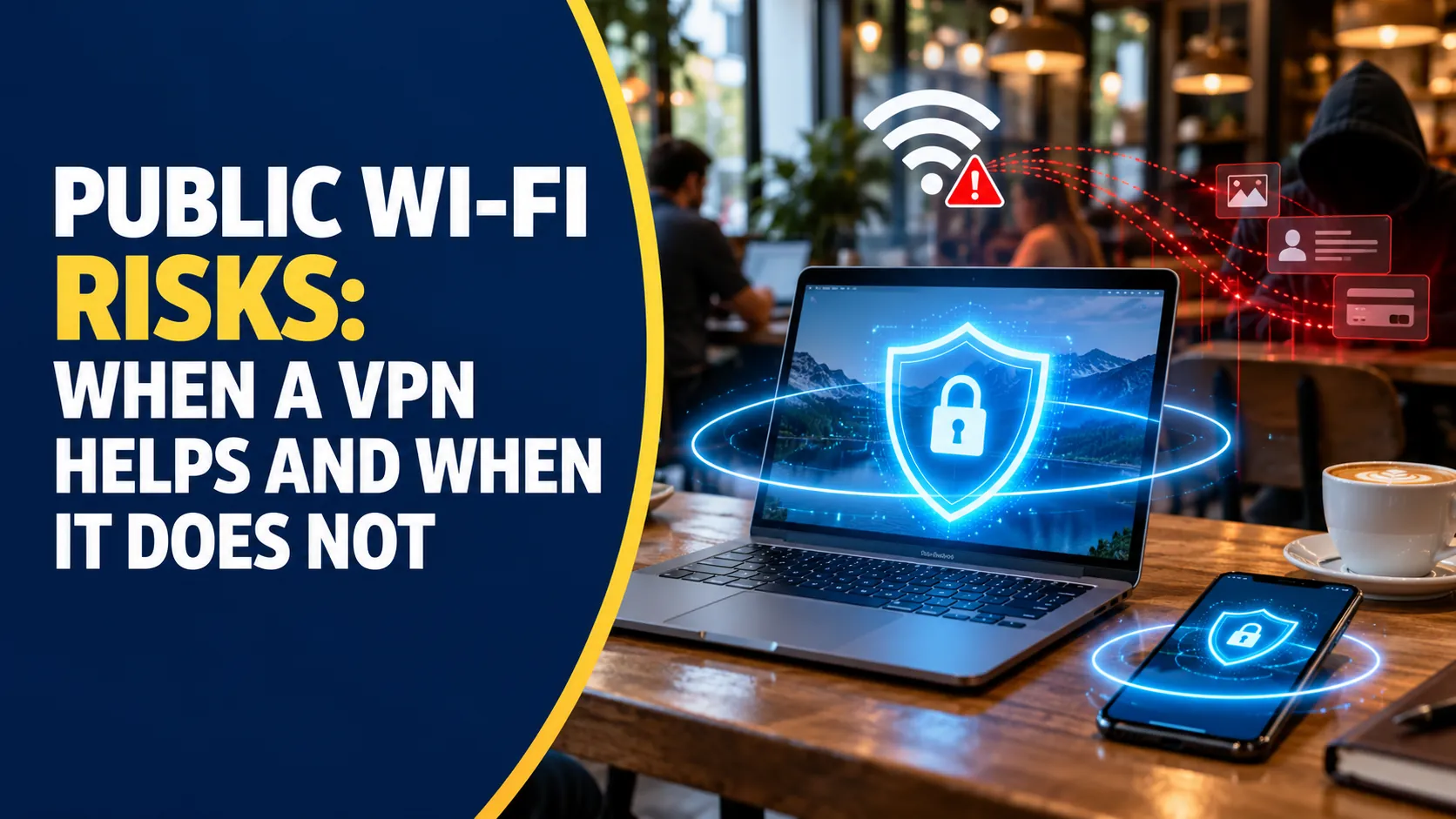
CISA, the US cybersecurity agency, tells travellers to avoid open networks for banking, shopping or other personal business, because attackers can intercept sensitive data there, and to switch to cellular data if a transaction cannot wait. October is Cybersecurity Awareness Month, and that one line of advice still answers most of the question people type into search: is public Wi-Fi safe?
The honest answer is that public Wi-Fi is less dangerous than headlines suggest and still not risk free. This guide explains the public Wi-Fi risks that matter, shows when a VPN genuinely helps and when it does nothing, and gives you a simple checklist for cafes, airports, hotels and trains.
Is Public Wi-Fi Safe? The Short Answer
Public Wi-Fi is safe enough for low-stakes browsing and risky for anything that involves money, identity or work accounts. The reason is structural. On an open network you share the connection with strangers, you cannot verify who runs it, and you have no say in how it is configured. Kaspersky’s public Wi-Fi guide describes the core problem as a man-in-the-middle position, where an attacker sits between your device and the access point and relays your traffic.
What has changed is that most major websites now use HTTPS, which encrypts the content between your browser and the site. That protects page content, but it does not hide which sites you visit or stop you from landing on a convincing fake. The risk has shifted from passive snooping toward impersonation and tricks, which is why the advice on this page is about behaviour as much as tools.
The Real Public Wi-Fi Risks
Fake hotspots and evil twins
An evil twin is a hotspot an attacker sets up with a believable name such as the cafe or airport brand. Your phone may join it automatically if you joined a similarly named network before. Once you are on it, the attacker can watch unencrypted traffic and show you fake sign-in pages. Kaspersky also describes attackers who compromise the access point itself to display a fake software-update pop-up that installs malware.
Interception on unencrypted connections
Because open networks need no authentication, attackers can read data that is not encrypted, including email, card details and business logins, according to Kaspersky. Sites that still serve pages over plain HTTP, and older apps that do not encrypt their traffic, remain the weak points.
Malware and risky sharing settings
If file or printer sharing is on, other devices on the network can see more of your laptop than you intend. Kaspersky notes that attackers can plant infected software through file sharing, and CISA advises turning Bluetooth off when you are not using it, because an open connection may let someone pair with your device and take personal information. Our guide to how AI-powered phishing works explains why fake pop-ups and login pages are now so convincing.
| Risk | How it works | What stops it |
|---|---|---|
| Evil twin hotspot | Fake network with a trusted name | Confirm the exact network name with staff; forget the network afterwards |
| Traffic interception | Attacker reads unencrypted data | HTTPS everywhere, a VPN, or cellular data |
| Fake login or update page | Captive portal or pop-up asks for credentials or a download | Never install updates from a Wi-Fi pop-up; sign in only via the official app |
| Exposed device | File sharing or Bluetooth left on | Set the network profile to Public and switch off sharing and Bluetooth |
| Account takeover | Stolen password reused elsewhere | Unique passwords and multi-factor sign-in |
When a VPN Helps and When It Does Not
A virtual private network encrypts the traffic leaving your device and sends it through a server you choose, so anyone on the local network sees only scrambled data. Kaspersky’s guide says the data is strongly encrypted and therefore hard to use if intercepted. On a hotel, airport or cafe network you do not trust, that is a real gain, especially for apps and sites that do not fully encrypt their traffic.
A VPN does not make you immune. It will not stop you from typing a password into a fake website, from downloading malware, or from being tricked by a scam call. It also moves trust from the Wi-Fi operator to the VPN provider, which can see your traffic, so pick a provider with a clear no-logging policy and independent audits. A free VPN with no business model is a risk of its own. If you work away from the office, our remote work cybersecurity guide covers how company-managed VPNs and device policies fit together.
| Situation | VPN helps? | Better or additional step |
|---|---|---|
| Browsing news or video on cafe Wi-Fi | Not essential | HTTPS sites are usually enough |
| Logging in to work email or cloud tools | Yes | Company VPN plus multi-factor sign-in |
| Online banking or paying a bill | Helps, but not the best option | Use cellular data or a mobile hotspot instead, as CISA advises |
| Using an app that does not encrypt well | Yes | Update the app, or avoid it on public networks |
| A phishing link or fake login page | No | Check the URL, use a password manager, never reuse passwords |
| Malware download | No | Keep security software active and scan downloads |
Public Wi-Fi by Location: Airports, Hotels, Cafes and Trains
Airports and cafes tend to have many look-alike network names, so the most useful habit is to ask staff for the exact name rather than picking the strongest signal. Hotels often use a shared password printed on a key card, which gives you no privacy from other guests, so treat hotel Wi-Fi like any other open network. Trains and in-flight networks are slow and heavily shared, which makes large downloads and sensitive transactions a poor fit.
At conferences and co-working spaces, ask whether there is a guest network separate from the staff network, and never join a network that has a typo or a duplicate name. If you travel often, a personal travel router or your phone’s mobile hotspot gives you a private network that you control. Our piece on biometric technology and privacy is useful if you also use fingerprint or face sign-in while travelling.
A 10-Point Public Wi-Fi Checklist
First, turn off auto-join for open networks and forget a network once you leave. Second, confirm the exact network name with staff. Third, choose the Public network profile on your laptop so sharing is off. Fourth, turn off Bluetooth when you are not using it, as CISA advises. Fifth, use HTTPS sites and the official apps instead of clicking links in messages.
Sixth, use a password manager so every account has a unique password. Seventh, turn on multi-factor sign-in for email, banking and social accounts. Eighth, keep your operating system and browser updated before you travel. Ninth, use a reputable VPN on untrusted networks. Tenth, switch to cellular data or a mobile hotspot for banking, shopping and anything involving identity documents.
What to Do If You Think You Were Compromised
If you entered a password on a suspicious page, change it immediately from a trusted network, then change it anywhere you reused it. Sign out of all sessions where the service allows it, review recent account activity, and enable multi-factor sign-in if you had not already. If you installed something from a pop-up, disconnect from the network, run a full security scan and consider resetting the device if the scan finds anything. For work accounts, tell your IT team straight away so they can revoke sessions and check for related activity.