
Microsoft researchers found that multi-factor authentication reduces the risk of account compromise by 99.22 percent across the entire population and by 98.56 percent when credentials have already leaked, with more than 99.99 percent of MFA-enabled accounts remaining secure during the study period. The same research found that authenticator apps outperformed SMS codes, although both beat having no MFA at all.
Most people know they should enable MFA, and few have done it for every important account. This guide is a how-to: it ranks the methods, then walks you through setting up MFA on email, banking, social media, and work accounts in about an hour, with backup codes and recovery steps so you do not lock yourself out.
The MFA Methods Ranked
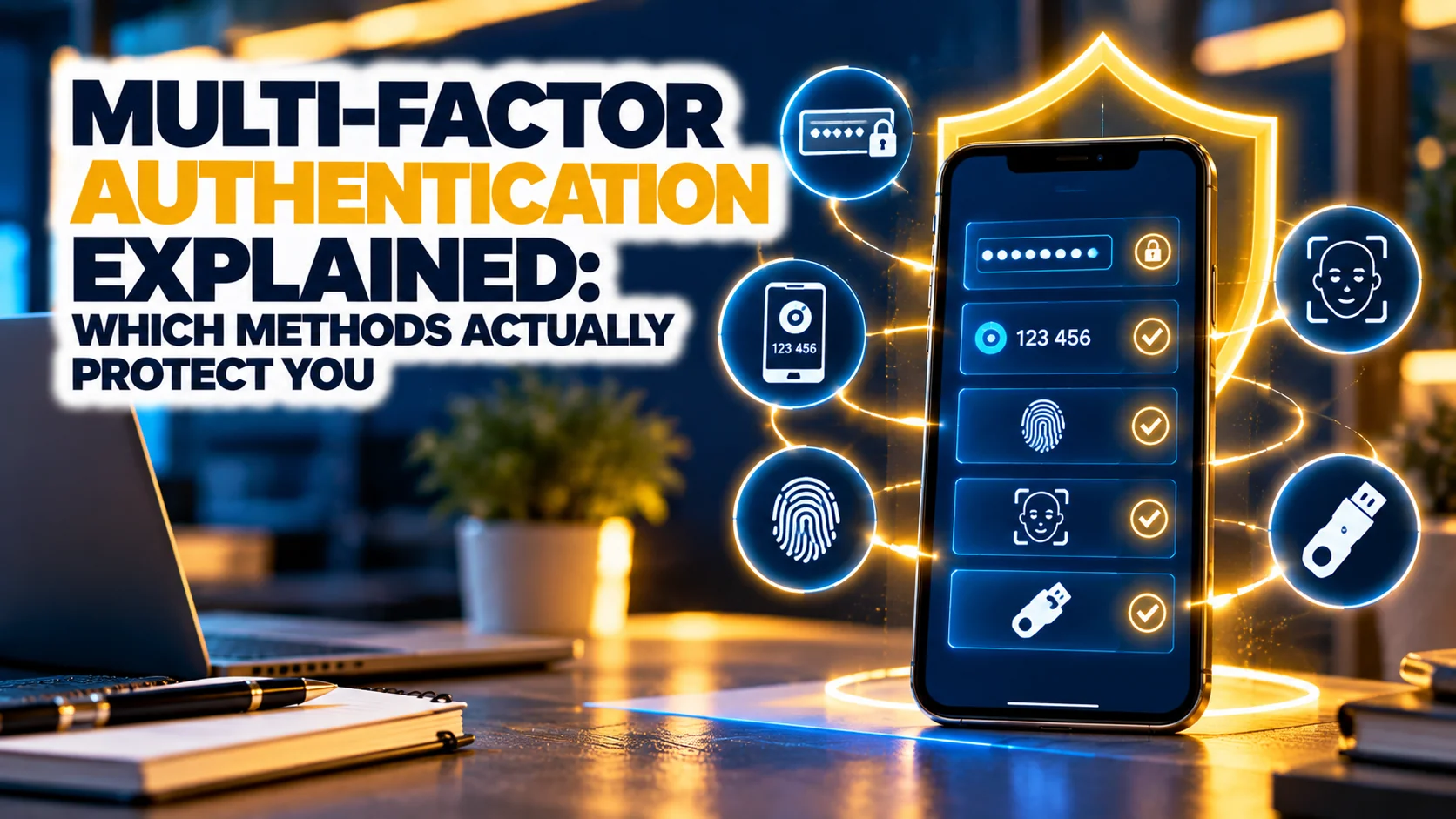
Not all second factors are equal. Microsoft’s research recommended defaulting to MFA for all accounts, and found that dedicated authenticator apps outperformed SMS-based methods. Security keys and passkeys offer the strongest protection because they resist phishing. The table ranks the common options.
| Method | Protection Level | Convenience | Weakness |
|---|---|---|---|
| Passkey or hardware security key | Strongest, phishing-resistant | High once set up | Needs a compatible device; keep a spare |
| Authenticator app (time-based codes) | Strong | Medium | Codes can be phished if you enter them on a fake site |
| Push notification approval | Strong, but prompt fatigue risk | High | Attackers spam prompts hoping you approve one |
| SMS or voice code | Better than nothing | High | SIM swapping and interception risks |
| Email code | Weak to moderate | High | Only as safe as the email account |
If you are unsure which to use, choose an authenticator app now, and add a passkey or security key later where supported. Our explainer on biometric technology and privacy covers the face and fingerprint unlocks that often sit behind passkeys.
Before You Begin: Prepare Three Things
First, install a reputable authenticator app on your phone, or use the one built into your password manager. Second, open your password manager, because you will store backup codes there, and our comparison of the best password managers will help if you do not have one. Third, make sure you know your account recovery details, such as a recovery email or phone number, and that they are current.
Step-by-Step: Set Up MFA on Your Accounts
Step 1: Email first
Your primary email controls password resets for almost everything else, so protect it first. Open the account’s security settings, find the section called two-step verification or multi-factor authentication, choose an authenticator app, and scan the QR code shown on screen with your app. Enter the six-digit code the app displays to confirm. Then download or write down the backup codes.
Step 2: Banking and finance
Log in to each bank, payment app, and brokerage, open security settings, and enable the strongest option offered. Many banks default to SMS. If an authenticator app or security key is available, use it. Turn on alerts for new logins and transactions.
Step 3: Social media and shopping
Enable MFA on social accounts, shopping sites that store cards, and any account that can be used to impersonate you. Look for the security or privacy menu, then the two-factor option. Use an authenticator app where offered and avoid relying only on SMS.
Step 4: Work accounts
Ask your IT team before changing anything on work accounts, since many organisations manage MFA centrally. If you run a business, enforce MFA for every user on email, cloud storage, accounting, and admin portals. Our SaaS security best practices guide lists the other controls to pair with it.
Step 5: Save backup codes and add a second method
Store backup codes in your password manager or print them and keep them in a safe place. Add a second device, a second authenticator, or a hardware security key, so that losing your phone does not lock you out. Test one login with each method before you finish.
Common MFA Mistakes and How to Avoid Them
The most common mistake is enabling MFA on a few accounts and skipping email. Another is storing backup codes in the same place as the password, such as an unprotected note on the phone. A third is approving unexpected push prompts. If you receive a prompt you did not trigger, deny it and change your password, since someone has your credentials. Attackers also ask people to read out codes by phone, pretending to be from a bank or an employer. No legitimate organisation will ask for your code.
Phishing can still defeat codes when a fake website captures both your password and your code in real time. This is why passkeys and security keys, which only work on the genuine website, are stronger. Our post on AI phishing attacks explains how convincing these fake pages have become.
What to Do If You Lose Your Phone
Use a backup code or your second method to sign in, then remove the lost device from each account and set MFA up again on the new device. Change the passwords for your email and banking accounts. If your phone number was used for SMS codes, contact your carrier and ask for a SIM lock. Keep a short written list of which accounts use MFA so you can work through them in order.